01
Log the supplier order
Choose products, glass or ancillaries, select your supplier and record the order against the job.


 | info@glazepoint.com


GLAZEPOINT TRACK ORDERS
Bring supplier deliveries into one clear view. Plan incoming stock, spot overdue orders and see the installation dates linked to each job.
Book Your DemoProducts, glass and ancillaries. Connected to your Glazepoint Job Manager.
Select the image to take a closer look.
FROM SUPPLIER ORDER TO DELIVERY
Place your order with the supplier as usual, then record it against the customer’s job in the Expenses tab. Track Orders brings those records together.
01
Choose products, glass or ancillaries, select your supplier and record the order against the job.
02
Enter the expected date and the order appears automatically under the relevant week commencing Monday.
03
Check what is due, identify orders that are overdue and compare deliveries with booked installation dates.
04
Mark received directly in Track Orders. The purchase record in Job Manager updates too.
A CLEAR VIEW OF INCOMING STOCK
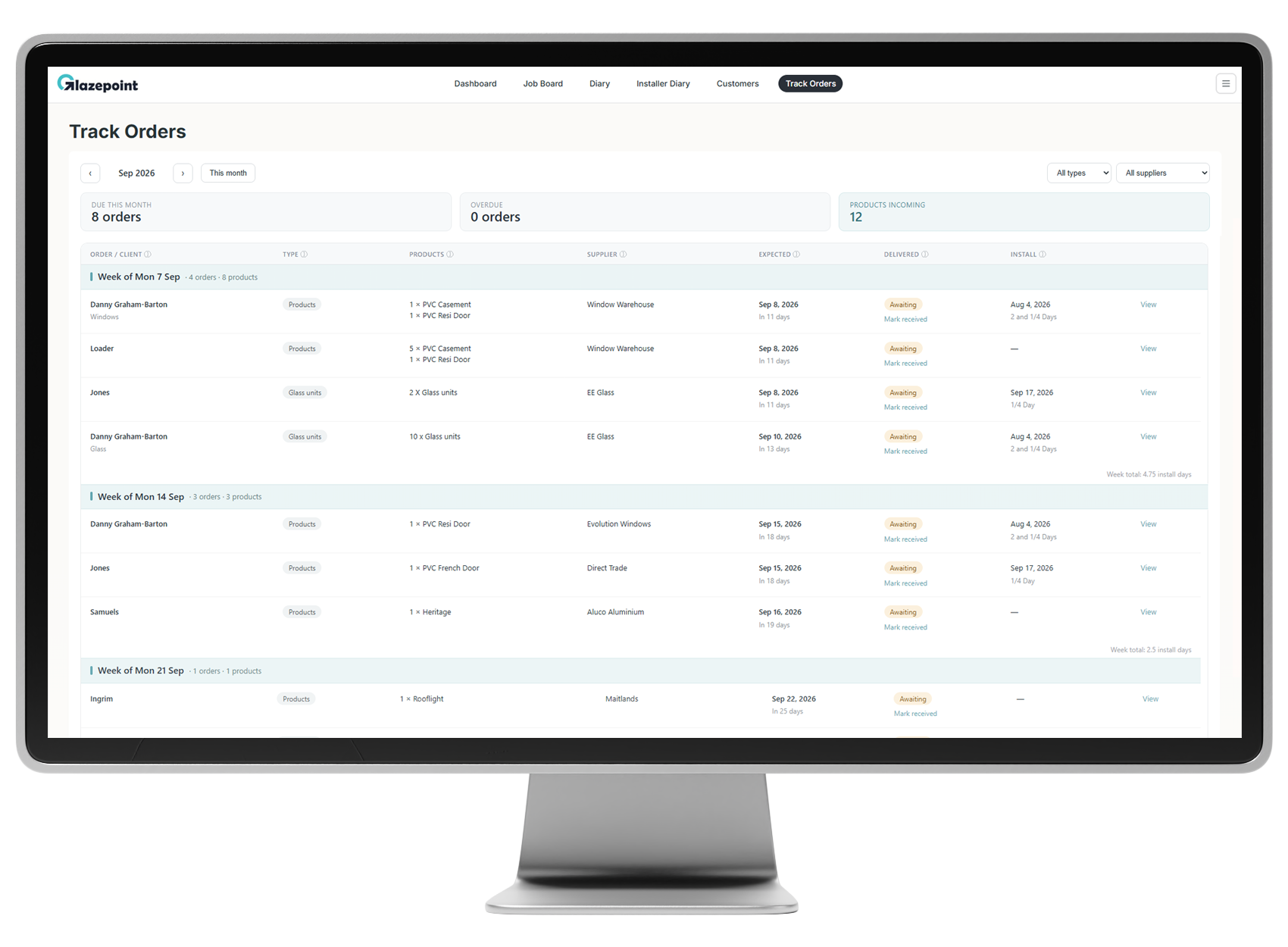
Browse by month, with orders grouped into delivery weeks. Expected dates, delivery status and installation information sit alongside each customer’s order.

Select the image to enlarge.
When the expected delivery date passes without the order being marked received, Glazepoint automatically highlights it as overdue.
Update the expected date in the purchase order and Track Orders automatically places it in the correct delivery week.
FOCUS ON THE ORDERS YOU NEED
Filter by products, glass or ancillaries, then narrow the view to a particular supplier.
Combine both filters when you need to check a specific group of deliveries, such as glass orders from one supplier.
Open the order or the linked job directly from the list to check the supporting information.
DELIVERIES CONNECTED TO INSTALLATIONS
Booked installation dates and durations appear automatically beside the relevant orders.
Each delivery week also shows the total installation days associated with those jobs, helping you understand the workload represented by the stock due to arrive.
See which jobs have deliveries expected in the same week.
Compare expected deliveries with booked installations before committing your team.
Use overdue highlighting to identify supplier orders that need attention.
THE DETAIL BEHIND EVERY ORDER
Your supplier purchase record holds the details your team needs, alongside the rest of the customer’s information in Job Manager.
Add your manufacturers and suppliers, record the cost, order date, expected delivery date, job number and invoice number.
Add notes and upload the manufacturer’s documents so the information stays against the job.
If you use Glazepoint’s Designer, choose which products to assign to the purchase order.
Track Orders is for internal recording and monitoring. You place the order with your supplier separately; Glazepoint does not send it to them.
CONNECTED JOB COSTING
Purchase orders and other expenses feed into the Job Cost Report, bringing the costs recorded against each job together.
Add costs such as skip hire, fitter costs, commission, scaffolding and other job expenses. These internal expenses are not shown to customers.
The report shows the job total, purchase orders, other expenses, job profit, profit percentage and payment status, with a date filter to choose the period.
The report reflects the costs you record, so keeping purchase orders and other expenses up to date helps you assess each job.

Select the image to enlarge.
TRACK ORDERS QUESTIONS
Record it in the Expenses tab within Job Manager. Choose products, glass or ancillaries and add the supplier details, cost, dates, references, notes and paperwork.
Orders are grouped by the week commencing Monday, based on their expected delivery dates. You can browse the monthly view to plan ahead.
Yes. Combine the supplier and type filters to focus on the orders you need.
An order that has passed its expected delivery date without being marked received is automatically highlighted as overdue.
Yes. Marking an order received also updates the purchase record in Job Manager.
No. You place the order with the supplier as usual, then record it in Glazepoint for internal tracking and job costing.
SEE GLAZEPOINT IN ACTION
Book a personalised demo to see how Track Orders connects supplier deliveries, installation plans and job information.
Book Your Demo